
Getting started
UniReader keeps your books on your iPhone and iPad. Bring them in once, from the Files app, from another app or over Wi‑Fi, and they are ready to read, with covers.
In this section
- Get through the two welcome screens.
- Bring your first books into UniReader.
- Find your way around the library and the reader.
- Pick up the last book you were reading in one click.
- Know what the 10-day trial covers.
The first launch
Two short screens greet you. The first says what UniReader reads; tap Next. The second asks Where are your books? and offers three ways in: Import a folder (from Files or iCloud Drive), Choose files, or Over Wi-Fi from a computer. Tap Later to look around first; the same choices wait in the empty library.
Adding books
- From the Files app. Tap Import in the library’s toolbar, then Select files or Import folder. A folder is read with all its subfolders. Each book is copied into UniReader, so it stays readable even when the original is out of reach.
- From another app. In Mail, Safari or Files, use the Share button or Open in and choose UniReader. The book is added to your library and opens straight away.
- From a computer, over Wi‑Fi. Tap Import → Import via Wi-Fi, then Start server. Type the address shown into a browser on your computer, on the same network, and drop your files on the page. Tap Done when you have finished.
- From free catalogs. Import → Browse catalogs opens free catalogs such as Project Gutenberg and Wikisource.
Finding your way around
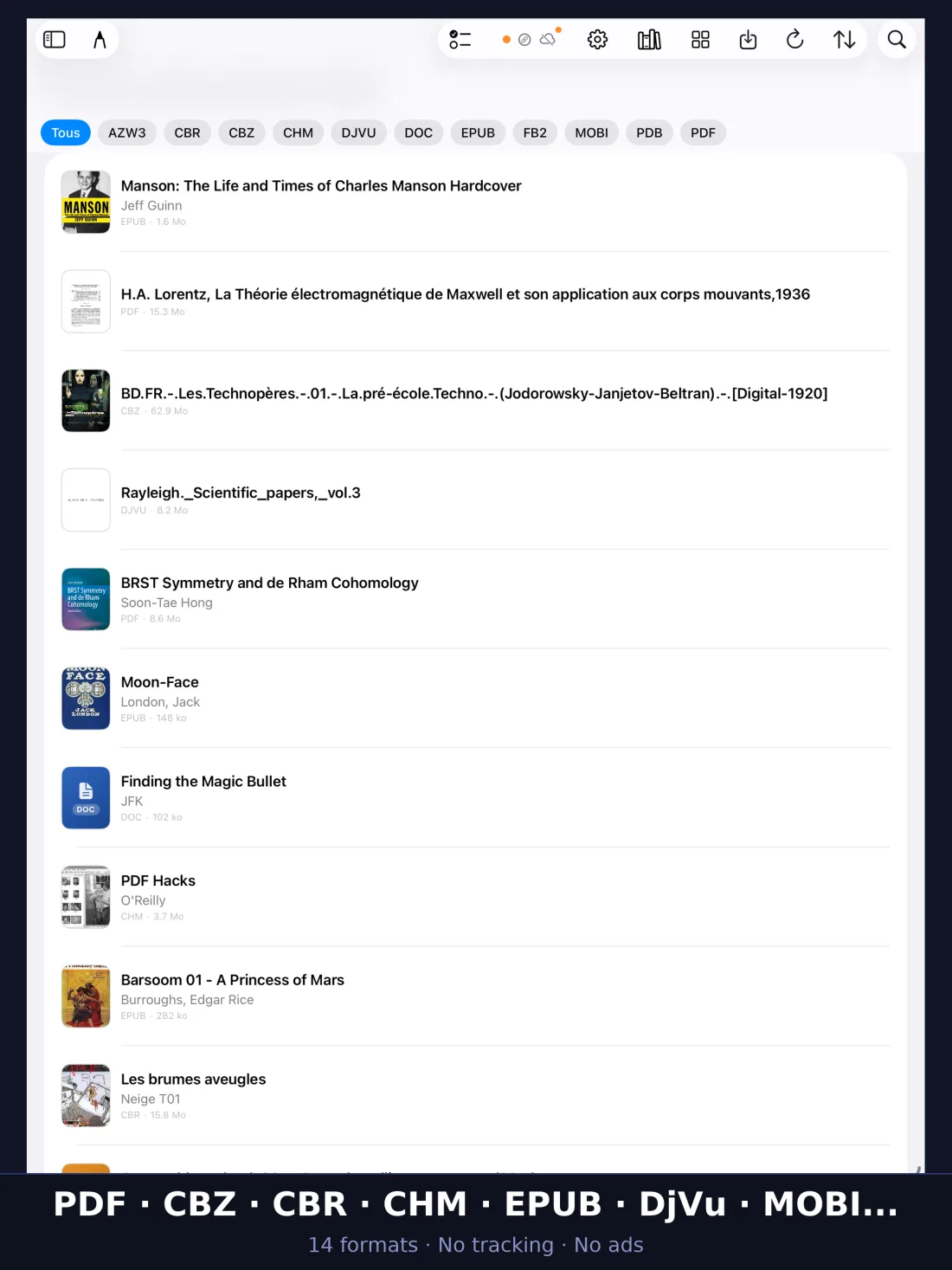
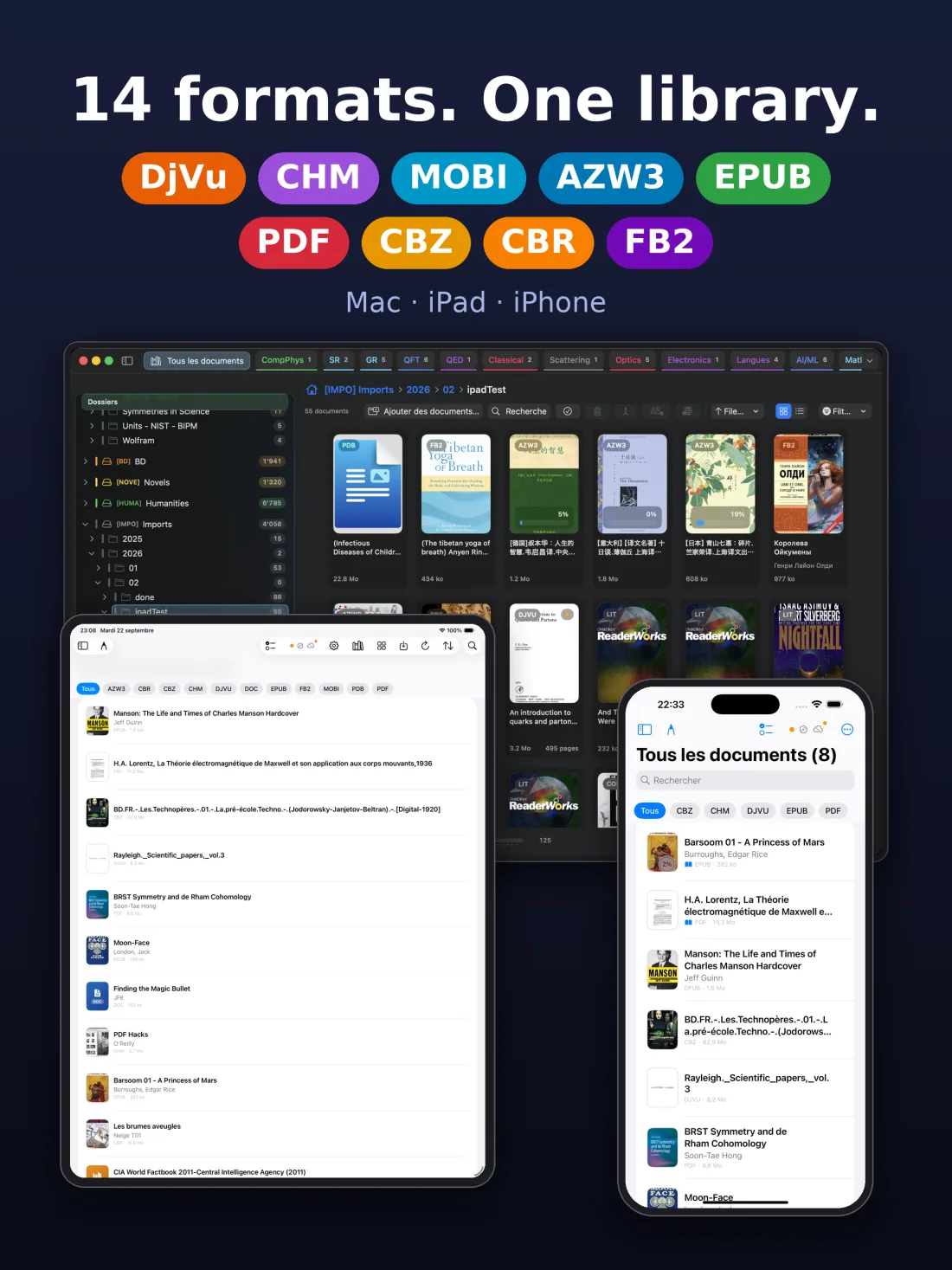
- The library shows your books as a grid or a list. Chips above it filter by format; the toolbar holds Import, sorting, the grid/list switch, Search and Settings.
- The sidebar sits beside the library on iPad: All documents, the Reading Status shelves, your Folders and Collections. On iPhone, the sidebar button at the top of the list opens your folders and collections.
- The reader opens when you tap a book, with its toolbar for the table of contents, search, bookmarks, highlights and reading aloud.
Continue reading
At the top of All documents, a Continue reading card shows the last book you were reading and how far you got. Tap it and you are back on the page where you stopped. Books you have marked as finished never appear there.
Your library
The library holds every book you brought into UniReader. Sort it, search it, put books into folders and collections, and give each one its real title and cover.
In this section
- Organize your books in folders and collections.
- Find a book by searching, sorting and filtering.
- Correct a title, an author or a cover, and look a book up online.
- Take a book out of the library without losing the file.
Folders
UniReader files each new book into a folder by kind — e-books, comics, documents and so on. To make your own, tap New folder in the sidebar, then long-press a book and choose Move to folder. Reload in the toolbar looks for new files, and Reload + missing covers also redraws the covers that are missing.
Reading shelves
Under Reading Status, three shelves fill themselves: Reading, Finished and Recent. To change a book’s status, long-press it and choose Unread, Reading or Finished.
Collections
- On iPad, tap Add collection under Collections in the sidebar.
- Long-press a book and choose Add to collection, then switch on the collections it belongs to.
- To delete a collection, long-press it in the sidebar and choose Delete. Its books stay in the library.
Search, sort and filter
- Search. Type part of a title, an author or a file name in the search field. Tap the Full text chip to look inside the books as well.
- Sort. The sort menu offers Last opened, Date added, Title, Author, Type and Size. Choose the same order again to reverse it.
- Filter. The chips above the list show one format at a time; All shows everything again.
- Display. The grid/list button in the toolbar shows your books as a grid of covers or as a list.
Covers
UniReader makes a cover for every book from the file itself. In list view, long-press a book: Regenerate cover draws it again, and for a PDF or a DjVu, Cover page → Choose cover page or Use last opened page picks another page.
Correcting the details
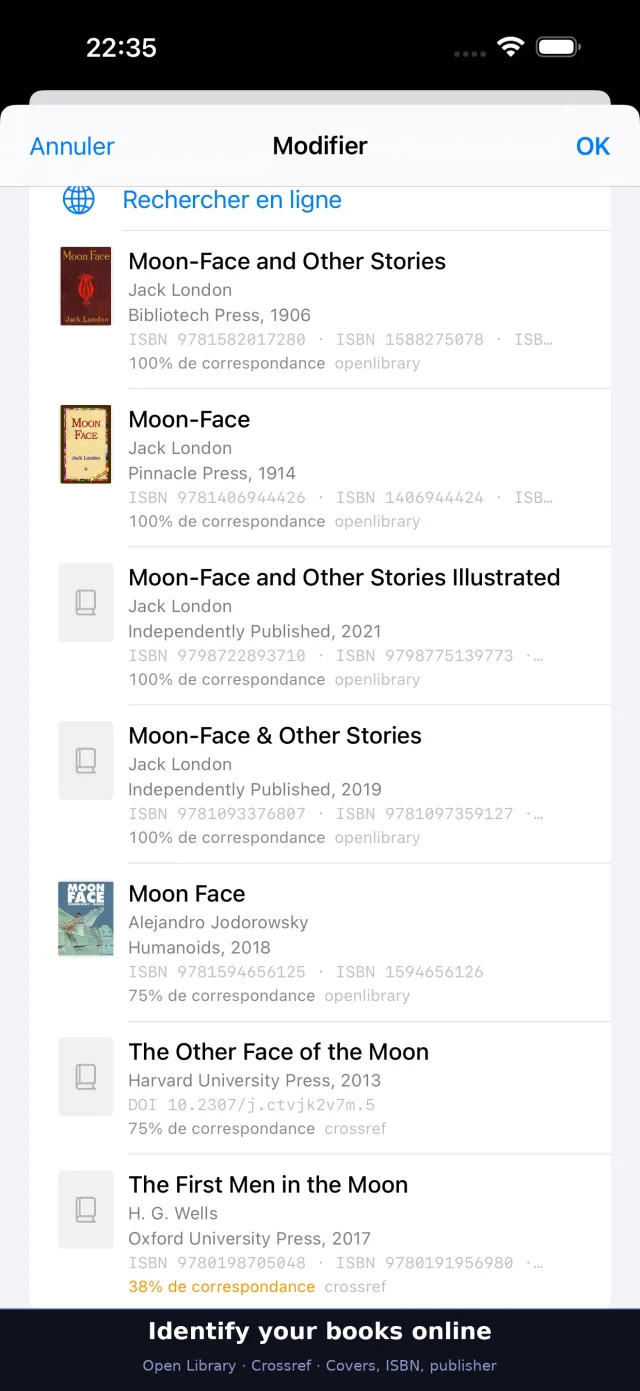
File names are often a poor guide. In list view, long-press a book and choose Edit title / author. The Edit sheet holds the title, the authors, the year, the publisher, the ISBN, the language and a summary; as you type, UniReader suggests names already in your library. Tap OK to save.
Finding a book’s details online
In the Edit sheet, tap Search online: UniReader looks the book up in Open Library and Crossref, with no account and no key. Each proposal shows its cover, so you can tell two editions apart, and how closely it matches. Tap the right one to fill the fields, then OK.
Removing or deleting
- Swipe a book to the left and tap Delete, or select several and tap Delete Selection. The book and UniReader’s copy of it are deleted; the original you imported from Files stays where it was.
- Deleting a folder keeps its books in the library.
Opening documents
Tap a book and it opens where you left it. Books sent from other apps open straight away, and every format opens in the same reader.
In this section
- Open a book from the library or from another app.
- Know which formats UniReader opens.
From the library
Tap a book. It opens at the page where you stopped. If its format is part of Premium and the trial hasn’t started yet, UniReader first offers Start the free trial and open.
From outside UniReader
In the Files app, Mail or any app that shares documents, tap the Share button or Open in, then choose UniReader. The book is added to your library and opens straight away.
Which formats open
- Books: EPUB, MOBI, AZW, AZW3, FB2 and LIT.
- Documents: PDF, DOC, DOCX, RTF, TXT and Markdown.
- Scans and references: DjVu and CHM.
- Comics and manga: CBZ and CBR.
Reading and moving around
UniReader adapts to each kind of document while keeping the same gestures. This chapter shows how to turn pages, choose a layout, jump through a book and find a passage.
In this section
- Know which documents have fixed pages and which ones reflow.
- Turn pages and choose one page, two pages or scrolling.
- Use the table of contents and jump to a page.
- Find a word in the document.
- Come back exactly where you stopped.
Two kinds of documents
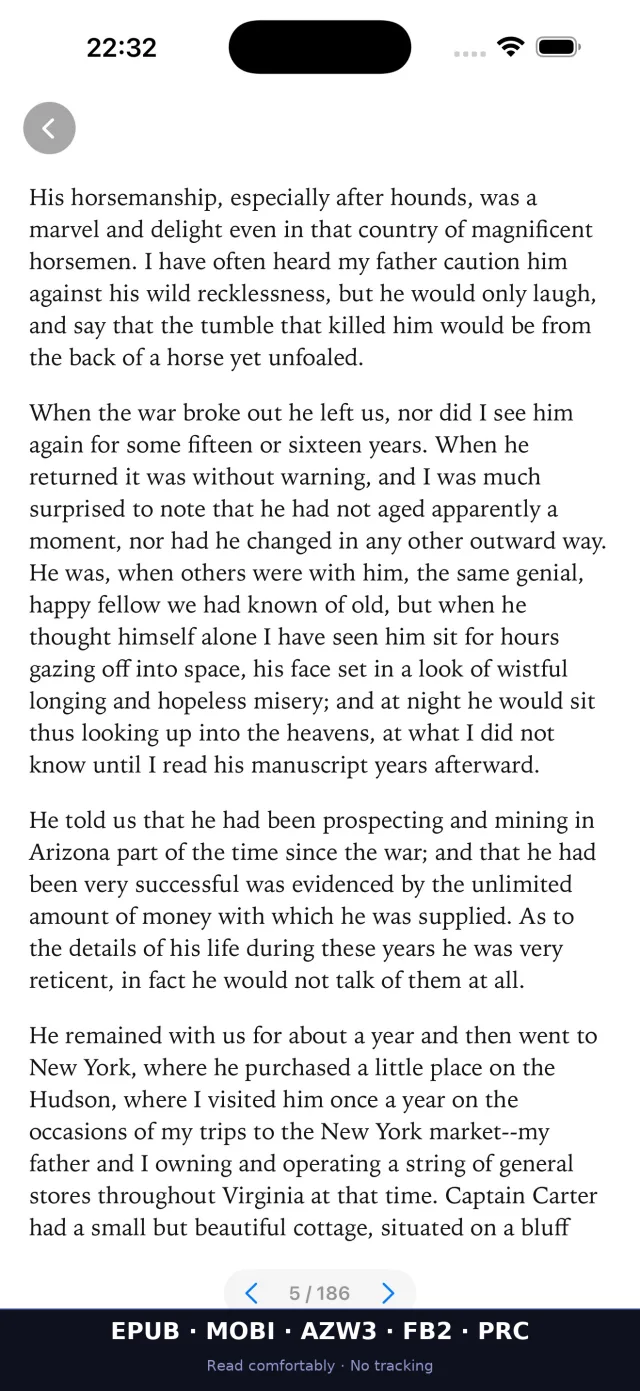
Fixed pages: PDF, DjVu and comics (CBZ, CBR) keep the layout of the printed page; you zoom with two fingers. Reflowable text: EPUB, MOBI, AZW3, FB2, CHM, LIT, Word, RTF and TXT flow to fit your screen. You choose the text size, the font and the theme.
Turning pages
Swipe to turn the page. The bar at the bottom shows the page you are on and has ‹ and › buttons. Double-tap the middle of the page to show or hide the toolbar; while it is hidden, a round ‹ button in the top corner takes you back to the library. Text files simply scroll.
One page, two pages or scrolling
Tap the ⋯ button, then, in the Display section, Double page or Single page. This works for PDF, DjVu and the text formats. Reflowable books also offer Continuous scroll, to read the book as one long page; CHM files have their own CHM mode with Paged and Scroll.
Fit and zoom
Pinch to zoom into a PDF, a DjVu page or a comic. For PDF and DjVu, ⋯ → Fit mode offers Fit page, Fit width and Fit height.
DjVu rendering
For a DjVu document, ⋯ → DjVu rendering offers Native rendering (images), the usual choice, and PDF rendering (conversion), which converts the file to PDF before showing it.
The table of contents
Tap the Table of contents button (the list icon) to open the Outline, then tap a chapter to go there. You can also build your own Custom outline, adding the current page as you read.
Finding a word
Tap the Search button (the magnifying glass) and type a word. Results appear as you type, each with its page or chapter and the surrounding text. In PDF and the text formats, tap a result to go there. Search also covers DjVu documents that have a text layer.
Back where you stopped
UniReader remembers your position in every document as you read, and reopens the last book when you come back to the app. With iCloud turned on, your progress also follows you to your other Apple devices (see syncing between devices).
Markdown documents
A Markdown file (.md) opens as a laid-out page in your reading theme: headings, tables, task lists, colored code, footnotes and formulas. Links to the web open in Safari, and images next to the file appear in the page.
Creating a Markdown document
- Show the folder you want in the library, then choose Import → New Markdown Document.
- Give it a name and tap Create: the document joins your library and opens in the text editor.
Editing a Markdown document
- In the reader, choose Edit text: the source opens in the text editor.
- Make your changes, then return to reading: the page is rendered again with them.
Looking up a word
Select a word in a book, then tap Define in the menu that appears: the iPhone or iPad dictionary opens with its definition. Define is there in EPUB and the other text formats, and in DjVu documents with a text layer.
Bookmarks, highlights and notes
Mark the places you want to find again, color the passages that matter, and write by hand next to the page with Apple Pencil or your finger.
In this section
- Add a bookmark and find it again.
- Highlight a passage in the color of your choice.
- Write a handwritten note beside the document.
- Browse your highlights and notes, and jump back to them.
- Export your highlights, and your handwritten notes as PDF or PNG.
Bookmarks
Tap the bookmark button at the top of the reader to mark where you are. To see them, open More options (the ⋯ button) and choose Bookmarks: each one is listed with the date you added it. Swipe a bookmark to the left to delete it.
Highlight a passage
- Select the text on the page.
- Tap the highlighter button at the top of the reader.
- The highlight takes your default color and tags. To change them, open More options → Annotation style and set the Color and the Tags (comma separated).
Your highlights
Open More options → Highlights to see every highlighted passage. Tap one to edit it: change its Color, add tags, or write a short Note about it. Swipe to the left to delete it.
Handwritten notes
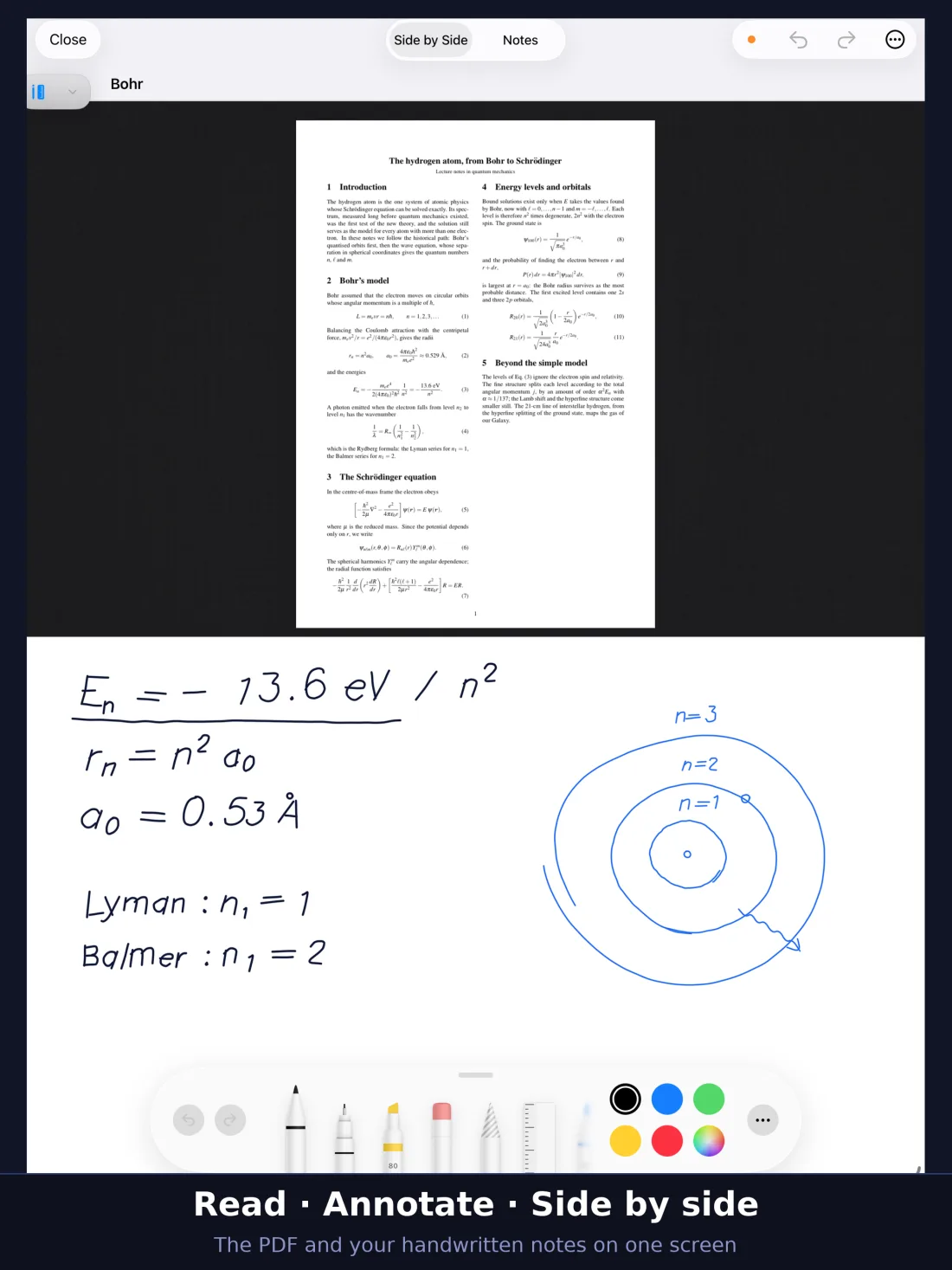
- Open More options → Notes. The note opens full screen.
- At the top, Side by Side shows the document and your note together; Notes gives the whole screen to the note. Split layout in the ⋯ menu places them side by side or one above the other.
- Write or draw. On iPad, the canvas follows Apple Pencil; choose Draw with finger in the ⋯ menu to use your finger instead. On iPhone, you write with your finger.
- The Shapes panel draws clean lines, arrows, rectangles, squares, circles, ellipses and dashed lines, and can rotate a selected area.
- Use undo and redo at the top, and Save in the ⋯ menu. An orange dot reminds you of unsaved changes.
Pages and paper
A note can have several pages: Add page and Delete this page are in the ⋯ menu. Paper settings chooses the Paper type — blank, lined, 4 mm or 5 mm grid, dots or textured — the Paper color – Light and Paper color – Dark, and the Page size. Each document keeps its own notes; Notes library in the ⋯ menu lists them, to open, rename, export or delete.
Export
- More options → Export annotations prepares a PDF of your highlights, grouped by color and by tag, along with a Markdown file, and opens the share sheet so you can save or send them.
- To export a handwritten note, choose Export PDF or Export PNG in its ⋯ menu, or Export as PDF or Export as PNG in the Notes library. You can name the file and choose the Background mode: As-is, High-key (light) or Low-key (dark).
Listen
UniReader can read the text aloud with the voices of your iPhone or iPad, turning the pages for you as it goes.
In this section
- Have the text read aloud, pause it and stop it.
- Choose the language, the voice and the speed.
- Let the reading carry on from page to page.
- Follow the sentence being read in an EPUB book.
Read aloud
- Open the document at the place you want to hear.
- Tap the speaker button at the top of the reader (Read aloud).
- A bar appears with buttons to go back, pause or resume, stop and go forward.
What is read
In a PDF or a DjVu book, the reading goes page by page and turns the pages as it goes; the bar shows the page being read. In an EPUB book, the sentence being read is highlighted in yellow and the page follows it.
Language, voice and speed
Tap the settings button in the reading bar (Speech settings) to set the Speed, the Language and the Voice, among the voices installed on your device.
Using several devices
UniReader on your Mac, iPhone and iPad can share one library. Books are copied over your Wi‑Fi; reading progress, highlights and notes follow through iCloud. And any computer with a web browser can send books to your iPhone or iPad.
In this section
- Link UniReader on your Mac with UniReader on your iPhone or iPad.
- Copy books between them over Wi‑Fi.
- Keep progress, bookmarks, highlights and notes in step through iCloud.
- Send books to your iPhone or iPad from any computer’s browser.
Two ways things travel
Books themselves are copied over your local Wi‑Fi network, between your Mac and your iPhone or iPad, when you ask for it. Everything you do with them — where you stopped, bookmarks, highlights, notes — travels through iCloud, in the background, under your own Apple Account, wherever the devices are. On the Mac, the iPhone’s or iPad’s library appears as a library of its own, kept in a folder on the Mac and listed in the sidebar under Mobile companion devices.
Before you start
- UniReader on the Mac and on the iPhone or iPad, with Premium on both — the 10-day trial counts.
- Both devices on the same Wi‑Fi network, and not a guest network that keeps devices apart.
- When macOS or iOS asks whether UniReader may find devices on your local network, allow it.
- For notes and progress: both devices signed in to iCloud with the same Apple Account.
Link an iPhone or iPad to your Mac
- On the iPhone or iPad, open Settings (the gear in the library). Under Sync with Mac, tap Connect to Mac…. UniReader copies this device’s pairing ID and starts looking for the Mac.
- On the Mac, choose UniReader → Settings, open the Sources tab and, under Sync with iPhone or iPad, click Connect to iPhone or iPad…. The Mac reads the pairing ID from the clipboard your Apple devices share.
- The first time, the Mac asks where to keep this device’s library: choose a folder. The library then appears in the sidebar under Mobile companion devices.
- When both sides are ready, the buttons become Sync books… on the iPhone or iPad and Sync with iPhone/iPad… on the Mac. Either one starts the copy.
Copying books
A sync works in both directions: books added on the iPhone or iPad come to their library on the Mac, and books you put in that library on the Mac go to the device. When the Mac has books waiting, the iPhone or iPad offers Transfer now or Later. A copy in progress can be stopped with Stop transfer. Under Advanced options, the sync mode is Merge libraries by default; Mirror (remove local-only titles) makes one side match the other exactly.
Notes and progress through iCloud
Turn on Keep notes & reading progress in iCloud on both sides: on the Mac, in the Sources tab, under the linked library in Mobile companion libraries; on the iPhone or iPad, in Settings, under Sync with Mac. From then on, highlights, notes, bookmarks and reading positions update in the background, even when the devices are far apart. To send your latest changes at once, tap Force iCloud sync now on the iPhone or iPad; on the Mac, it is the cloud button in the library’s sync bar.
Reading the status lights
Two colored dots show where things stand: one for the library, one for the link with the other device. Green means everything is up to date or the devices are linked; orange means a step is still pending, or the Mac is waiting for the iPhone or iPad; gray means iCloud sync is off or the devices are not connected. On the Mac, rest the pointer on a dot to read what it means.
When both sides changed
If the same item was changed on both devices, UniReader does not choose for you. Sync conflicts shows it, and you pick Keep Mac version, Keep iPhone or iPad version or Merge.
Paired devices
On the Mac, Manage paired devices…, under a linked library in the Sources tab, lists the devices that have synced with it; Forget removes one. On the iPhone or iPad, Forget link is under Advanced options.
Send books to an iPhone or iPad from a computer
Any computer on the same Wi‑Fi can do it — a Mac, a Windows PC or another — with nothing to install but a web browser.
- In the library on the iPhone or iPad, tap Import, then Import via Wi-Fi.
- Tap Start server. UniReader shows an address to open in a browser on your computer.
- Type that address into the browser on the computer. Drag your files onto the page, or click to choose them, then click Import.
- The books appear in the library. Keep the screen open while files arrive, and tap Done when you have finished: the server stops when you leave it.
Themes and appearance
Give the page the color and the type that suit your eyes, by day and by night. Themes, text size and spacing apply to the reflowable formats; PDF, DjVu and comics keep the look of the printed page.
In this section
- Choose a reading theme.
- Set the text size, the spacing and the margins.
- Switch the app between light and dark.
Reading themes
Six themes are available: Automatic, Light, Sepia, Night, Paper light and Paper dark. Automatic follows the light or dark appearance of your device. Choose one with ⋯ → Theme in the reader. The sun and moon button of the toolbar switches straight between day and night.
PDF, DjVu and comics at night
Fixed pages are shown as they were printed. For PDF and DjVu, ⋯ → PDF background puts a Light or Dark surround around the page. The sun and moon button switches it as well, and does the same for comics.
Text size, spacing and margins
Tap ⋯ in the reader. In the Display section, Text size makes the text larger or smaller, and Margins and Line height give the page more air. Font keeps the book’s own typeface — Original (from the book) — or sets another: Iowan Old Style, Palatino, Georgia, Athelas, Seravek, Helvetica Neue, Arial, IA Writer Duospace, or OpenDyslexic, designed for readers with dyslexia.
For one book or for all
The theme, the margins and the line height you choose apply to all your books. Settings → Reading holds the same settings, with Default theme, PDF background, Margins and Line height, and a preview.
Light or dark app
The app follows your default theme: with Automatic it follows your device, with Night or Paper dark it turns dark, and with the other themes it stays light. In Settings, Automatic night mode switches to the night theme between the hours you choose with Night from and Night until.
Pictures on dark pages
With a dark theme, pictures in a book keep a light background, so that drawings and diagrams with transparent parts stay readable.
Sharing and printing
Send a book to another app, to Files or to a printer, straight from UniReader.
In this section
- Share a document from the reader or the library.
- Export your annotations.
Sharing a document
- In the reader, tap ⋯, then Share document.
- In the library, in list view, touch and hold a book, then tap Share.
Both open the system share sheet with the original file. From there you can send it to another app, save it to Files, or print it when iOS offers printing for that kind of file, as it does for PDF.
Exporting your notes
In the reader, ⋯ → Export annotations shares your highlights as a PDF, along with Markdown and JSON files. More in the chapter on notes.
Free and Premium
PDF, EPUB and TXT are free to read for as long as you like, and so are the first 7 pages of FB2 books. Premium opens every other format and the tools around them — and you can try all of it free for 10 days.
In this section
- Know what stays free and what Premium adds.
- Start the 10-day trial, and know when it ends.
- Choose a monthly or yearly subscription, or a one-time purchase.
- Restore your purchase on a new device.
What is free
Without Premium, UniReader reads DRM-free PDF, EPUB and TXT files, with the essential library tools, for as long as you like and without an account. FB2 books open as a free preview: their first 7 pages can be read without Premium.
What Premium adds
- Every other supported format: DjVu, MOBI, CHM, comics, office documents and more.
- Advanced annotations, handwriting and exports, and reading statistics.
- iCloud sync, and sync with UniReader for Mac.
The 10-day trial
For 10 days, every Premium feature is open. The trial costs nothing, asks for no payment details, and nothing is charged when it ends. There is one trial per device. When you are signed in to iCloud, the same trial covers your Mac, iPhone and iPad: started on one, it runs — and ends — on all of them. Reinstalling the app does not start a new one.
Starting the trial
You can also start it without opening a document: tap the crown button in the Premium section of Settings, then Start 10-day free trial.
- Open a document in a format that is part of Premium, such as a comic or a DjVu book. A window tells you which format it is and offers the trial.
- Choose Start the free trial and open: the trial starts and the document opens straight away.
- See plans shows the offers instead, and Later closes the window.
While it runs, and when it ends
- The Premium section of Settings shows the days left.
- When the trial starts, UniReader asks whether it may send you notifications. If you allow them, a reminder arrives the day before the end: “Your Premium trial ends tomorrow”.
- When the trial ends, PDF, EPUB and TXT stay free, as do the first 7 pages of FB2 books, and nothing in your library is deleted. The other formats ask for Premium again.
Buying Premium
The UniReader Premium screen lists three offers with the price for your country: Monthly, Yearly, and Lifetime, a one-time purchase. Tap one and confirm with the App Store. The screen opens from the crown button in the Premium section of Settings, or from See plans in the window that offers the trial.
Restoring a purchase
On a new iPhone or iPad, or after reinstalling, make sure you are signed in with the Apple Account you bought with. Tap the crown button in the Premium section of Settings, then Restore Purchases. If an older purchase is still not recognized, Need help with a previous purchase? prepares an email to support with your app version and device.
Changing or canceling a subscription
On the UniReader Premium screen, Manage Subscription opens your App Store subscriptions, where you can change or cancel. A subscription renews automatically unless it is canceled at least 24 hours before renewal.
Help and troubleshooting
Where to find help inside UniReader, what to do when a file won’t open or goes missing, and how to reach us when something is still wrong.
In this section
- Open the help built into the app.
- Understand why a file won’t open, and what to try.
- Write to support with what we need to help you quickly.
The help inside the app
Open Settings (the gear in the library), then User Guide. It covers importing, the library, folders, reading, notes and formats, in the language of your device.
A file that won’t open
When a document cannot be read, UniReader tells you in the reader instead of closing — for example that a PDF is damaged or isn’t a PDF at all.
- Try another file of the same format. If it opens, the first file is at fault; if it doesn’t, the reader is, and we want to know.
- UniReader reads DRM-free files. A book protected by DRM, such as one bought in the Kindle store, opens in the app of the shop that sold it.
- If the file opens in another app, send it to us: it helps us improve the reader.
- Formats that are not free ask for Premium once the trial is over: see Free and Premium.
When sync between Mac and iPhone or iPad stalls
- Both devices must be on the same Wi‑Fi, not a guest network, and UniReader must be allowed to use the local network in the system’s privacy settings.
- On the Mac, Reset connection, under Sync with iPhone or iPad in the Sources settings, starts the link again from scratch.
- If the Mac’s firewall is on, it must let UniReader accept incoming connections.
- For notes and progress, check that both devices are signed in to iCloud and that Keep notes & reading progress in iCloud is on for that library. Everything else is in Using several devices.
Premium not recognized
Make sure you are signed in with the Apple Account you bought with, then use Restore Purchases, as described in Free and Premium.
Contacting support
Write to support@pasahome.org, for a question, a bug, an idea or a purchase. A real person reads every message, usually within one or two working days. To help us fix things quickly, please include:
- the app version (Settings → About → Version) and your iOS or iPadOS version;
- the format of the file and, if you can, the file itself;
- what you did, what you expected, and what happened instead.